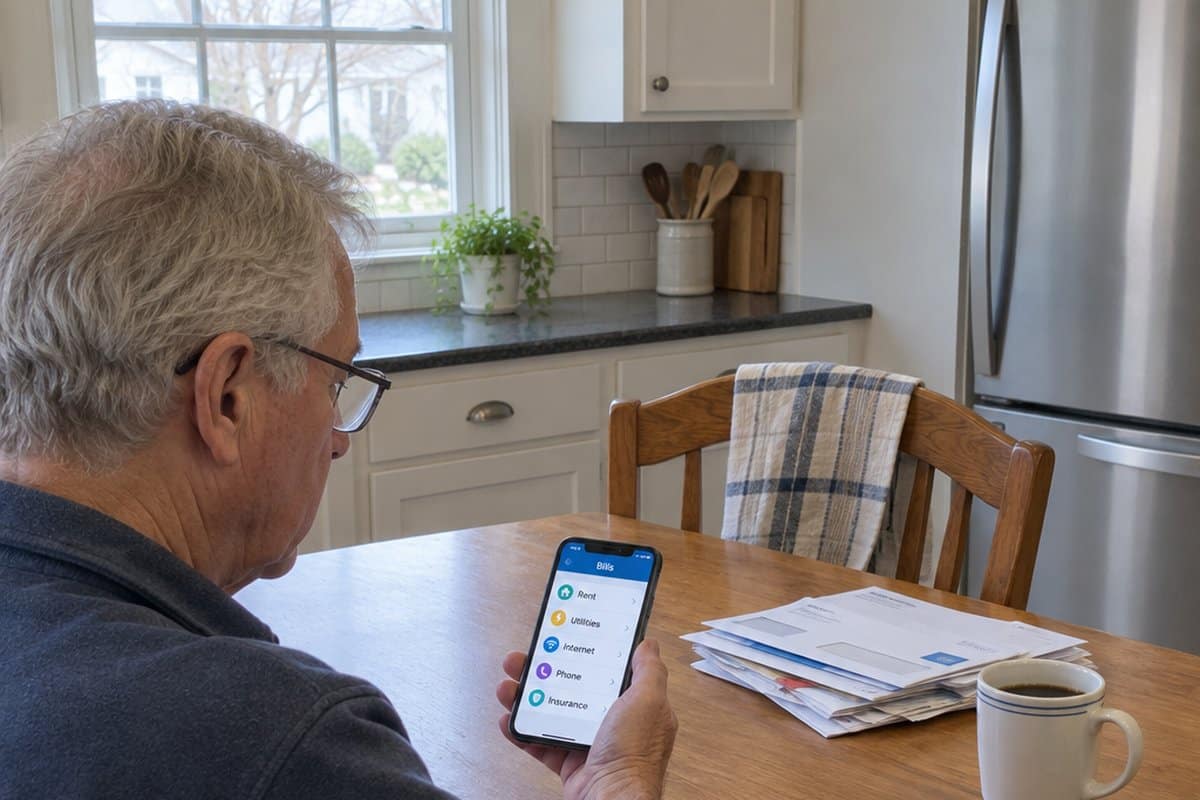
Many people now pay bills and send money from a phone, and it can feel like one more thing to figure out.
This guide to the best finance apps for seniors walks through budgeting, personal finance and investment apps in plain words.
It also covers what a digital payment app is, setting up a digital wallet, staying safe from scams, fixing a payment that fails, and whether a debit card or a payment app suits you better.
Budgeting Apps For Seniors
Below are some of the top finance apps for seniors, and most of them are free for Android and iPhone users! These productivity apps for seniors and the elderly help them manage their money whether on a limited income or if they are looking to stretch their retirement dollars!
Prism
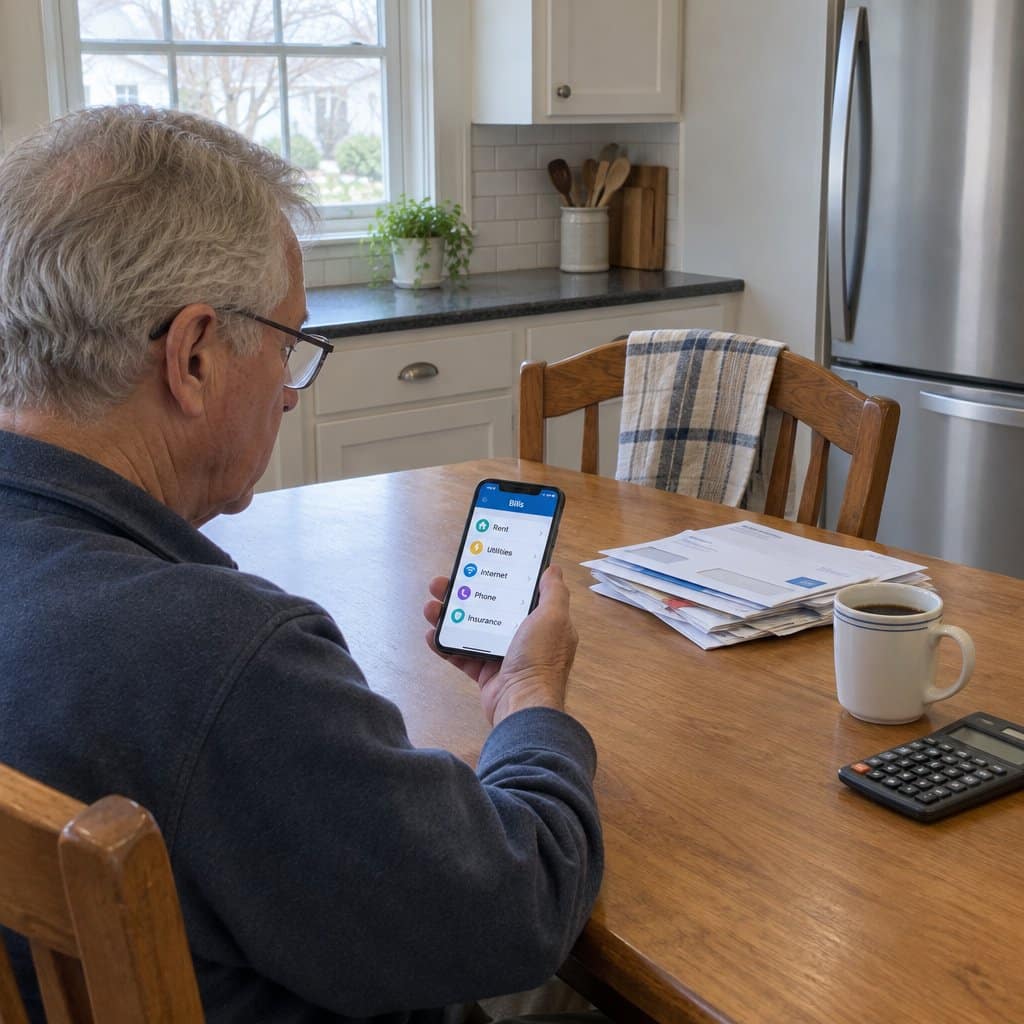
This is one of the intuitive applications designed to help users track their monthly bills, pay these bills on time, or to make sure they do not overspend because they have forgotten about an upcoming bill.
This app also provides a way for seniors to pay their bills using the app instead of needing to log into different accounts.
While Prism offers services that are available in many of the other applications, it focuses mainly on financial management with a very simple design that can make it easier for seniors to use for these purposes when compared to others.
AARP Now
The AARP Now mobile app that is associated with AARP, which stands for the American Association of Retired Persons, has made tracking the latest special offers and news extremely easy for seniors.
This app also offers local events in calendar format in the user’s area and any discounts available with their AARP membership. AARP members can access a digital card in this app at any time. Other features include members-only discounts and benefits, events listings nearby, and news stories (daily).
PocketGuard
PocketGuard features a simplified and easy-to-use budget snapshot that connects the user to their credit, savings, and checking accounts while detecting recurring income and bills.
It also displays how much money is left for day-to-day spending by first subtracting any upcoming bills, contributions to a savings goal, and any other pre-budgeted money from the user’s estimated income.
The app then automatically categorizes the expenses, but the user can also create their own custom categories along with setting limits for each one.
The app also gives a “snapshot” of what is left in your “pocket” and whether there is any money left over for a bit of fun.
The app is also useful for finding deals that may reduce what you pay on your monthly bills. Its interface is simple and should not be hard to navigate, especially if you are already comfortable with a phone or tablet.
Personal Finance Apps For Seniors
Venmo
Venmo is an app that allows users to digitally transfer money to other people or to family members. An example of this may include transferring money to a friend who would like to split the bill when eating out at a restaurant.
This is made possible by signing up online, followed by linking a bank account or credit card to the user’s Venmo account (it is recommended to rather use credit cards for maximum fraud protection).
While the automatic settings in Venmo allow for a transfer limit of $2,900 per transaction, the user can change this to a level they feel comfortable with. They can also request real-time alerts as soon as a transaction goes through.
Automatic Bill Payments, Linked Apps and Sending Money Abroad
Once you are comfortable with a payment app, a few extra features can save you effort. Three are worth knowing about.
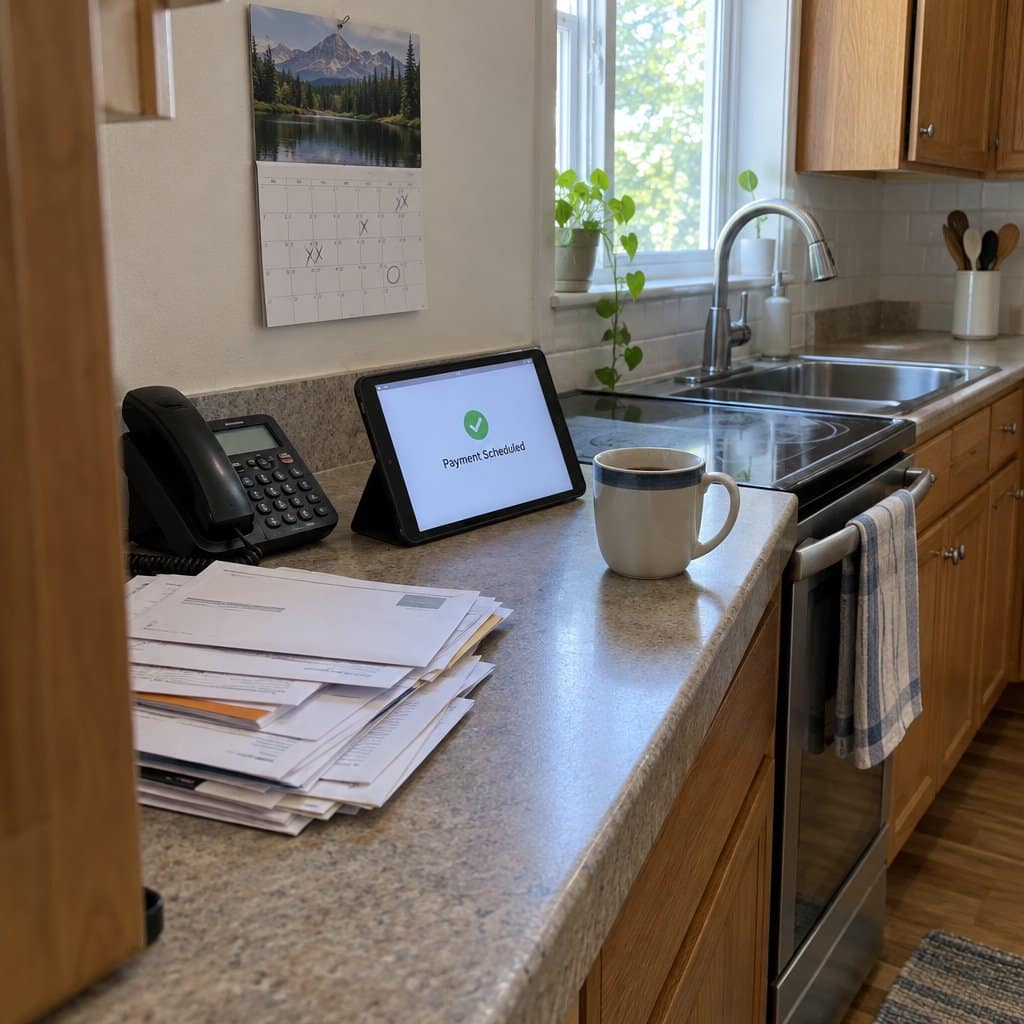
The first is recurring payments. Say you never want to worry about forgetting a bill. You set up a regular expense like a utility or a subscription once, and the app handles it from then on.
The second is connecting your payment app to other financial tools. That can mean your banking app or budgeting software, like the budgeting apps above.
With everything linked, you get a fuller picture of your money. Tracking your spending and savings gets easier too.
The third is international transfers. If you need to send money to friends or family overseas, look for an app that offers this option.
These transfers often cost less in fees than sending money through a traditional bank.
The trade-off: automatic payments mean the app is paying for you, so you still need to glance at your activity now and then. Not every app offers international transfers, so check before you count on one.

When a Payment Doesn't Go Through
A payment that fails is frustrating, but the cause is usually simple. Start with your internet connection, because a payment needs a stable one to go through.
Next, check that your payment information is current and typed in correctly. That means your card number and its expiration date.
If the payment still fails, the problem may be the money available in the account. Some apps also have their own limits on how much you can send at once.
Apps sometimes glitch too. Restarting the app or your device often fixes it.
If that does not help, update the app, since an older version can cause odd problems. Keep your phone’s operating system updated as well, because that matters for how steadily the app runs and for security.
When you need a person, go to the app’s help center. Many apps list a phone number, live chat or email support.
The FAQ and community forum sections can help too. Other people have often run into the same problem and posted the answer.
Before you reach out, take a screenshot of the error. It gives the support person something clear to work from.
The trade-off: these fixes take a bit of patience, and some of them, like updating the app and your phone, mean a few extra minutes before you can try the payment again.

Staying Safe and Spotting Scams With Payment Apps
Your security and privacy matter most when you handle money online. A few habits go a long way.
Make sure an app is the real thing before you use it. Apple Pay and Google Pay are well established and have strong security measures in place.
Use a strong, unique password for each wallet or payment app, and never share it with anyone.
Turn on two-factor authentication if the app offers it. That means a second check, such as a code sent to your phone, before anyone can get in.
Scams come in through payment requests and emails. If you get a payment request that looks suspicious, cancel it.
Do not rush to accept a request or click a link in an email unless you are sure it came from a source you trust. Only send money to people you know.
Use secure, private Wi-Fi when you make transactions, because public Wi-Fi can be risky. Also turn on notifications for every transaction, so you hear right away if something looks wrong.
Stick to known, trusted apps. That keeps you in control of your money.
The trade-off: these habits add a step or two each time you pay. A code to enter or a request to double-check takes a minute, but that minute is what keeps a scammer out.
How to Send, Request and Track Payments
Sending money in a payment app takes a few steps. First, pick who you are paying. Often you can choose them right from your contact list.
Next, type in the amount and tap send. Your bank account or credit card needs to be linked to the app first.
Asking for money works much the same way. Open the “request” or “bill split” feature in the app, enter the amount, and choose who owes you.
That person gets a notification reminding them to pay. It also gives you an easy way to see who has paid and who has not.
To keep track of where your money goes, look for a section called “transaction history” or “activity.” It shows your past payments in one place.
Some apps also let you sort transactions into categories. That makes it easier to see how much you are spending and on what.
The trade-off: sending money takes only a tap, so slow down and check the amount and the name before you hit send. The security features in an app can only protect you so far once the money is on its way.

Setting Up a Digital Wallet Step by Step
A digital wallet is like a virtual purse. It keeps your payment methods in one place so they are easy to reach on your phone or tablet. Setting one up comes down to three steps.
Step 1: Create an account. Choose a wallet app that suits your phone’s operating system. Apple Pay is made for iPhones, and Google Pay is made for Android.
Download the app, then type in your details. That is usually your name, your email, and a secure password.
Step 2: Link your cards or bank accounts. Most wallets guide you through adding a credit or debit card. Often you can simply scan the card with your phone’s camera.
Follow the prompts on the screen. You can add more than one card, so you have several ways to pay.
Step 3: Verify who you are. Before you start paying, the app may ask you to confirm it is really you. That could be a text code sent to your phone, or a quick check of your fingerprint or face.
Once that is done, you can shop with a tap or a click. If the screens feel unfamiliar, these tips on improving your digital skills can help you get comfortable first.
The trade-off: the setup asks for personal details and a way to prove your identity, so plan to have your cards and your phone in hand. Take it one step at a time, and there is no need to rush.
PayPal, Venmo, Apple Pay, Google Pay, Zelle and Cash App Compared
Before you pick an app, think about how easy it is to use, what fees it charges, how secure it is, and whether you can reach customer support. Then match it to how comfortable you are with technology.
PayPal is well established and offers thorough buyer protection. It has a user-friendly layout, so it suits you if you shop online a lot or often send money to family and friends.
Venmo is friendly to use and has a social side. It suits people who enjoy sharing with their circle of friends, and it makes splitting bills easy. Transactions are shared by default, so you may want to change that setting for privacy.
Apple Pay works smoothly if you already use an iPhone or Apple Watch. You can tap to pay in stores or send money in Messages, with strong encryption and privacy.
Google Pay is the Android counterpart. It offers tap-to-pay and an easy-to-follow screen for managing your transactions. It is a practical pick if you like contactless payments and simple budget tracking.
Zelle sends money directly between bank accounts, usually within minutes. There is no new app to learn if your bank offers it, because it works inside your bank’s website or app.
Cash App has a simple layout for moving money, and it also lets you invest. It suits you if you like plain apps without extras.
The trade-off: none of these fits everyone, and each has quirks. Venmo shares your payments unless you change it, and Cash App can charge fees when you send money with a credit card. Pick the one that matches your phone and your habits.
Debit Cards or Payment Apps: Which Should You Use?
A debit card works like an electronic checkbook. It pulls money straight from your checking account, and you swipe or insert it and enter your PIN. A payment app is a virtual wallet on your phone. Either one can work well, and the better pick depends on the job.
For ease of use, a debit card is simple in stores and works where the internet is not available. Once a payment app is set up, sending money takes a few taps on your smartphone. If the phone itself is new to you, these tips for learning to use a smartphone are a good place to start.
On accessibility, payment apps often offer voice commands or large text for people with visual or physical impairments. A debit card needs no tech know-how and no special setup.
On fees, a debit card can bring overdraft charges if your balance runs low. Apps may charge a small fee for instant transfers or for paying with a credit card. Sending money from a linked bank account is typically free.
On fraud, a debit card gives basic protection, and you may be liable for unauthorized purchases up to a certain amount. Apps can send an immediate alert for every transaction, and a trusted family member can help watch for suspicious activity. You can read more on how limited debit card fraud protection is.
Which Fits Which Situation
- In stores: a debit card suits a quick grocery run if you like to watch your spending. An app suits tap-to-pay checkouts, with no buttons to touch or cash to handle.
- Online: an app adds a layer of security to keep your bank information private. A debit card lets you watch your balance closely.
- Bills: set a debit card to autopay so you never miss a due date. An app keeps notifications and payments in one spot.
- Dining out: a debit card pays your exact share. An app lets you repay friends with no exact change.
- Traveling: you will need a debit card for cash withdrawals abroad. An app makes booking tickets and hotels easy.
- Paying people: an app is quick for splitting a gift or paying an instructor. A debit card works for people who do not use apps.
- Home services: a debit card is like writing a check, with instant payment. Some apps let you pay with just an email or phone number.
Whichever you choose, never share your PIN or password, and check your statements regularly. Be wary of scams, and only send money to people you know well.
The trade-off: an app needs a smartphone, and if you lose or damage it, you may lose access to your wallet. Not every business accepts app payments either, so you may want to keep a debit card as a backup.
What a Digital Payment App Is and Why You Might Use One
A digital payment app lets you send and receive money with a few taps on your smartphone or tablet. Think of it as a virtual wallet. Your payment methods are stored in it, ready to use without carrying cash or cards.
The everyday benefit is that you skip digging for loose change and writing checks. You can pay when you shop online, or split a bill at lunch with friends.
Say you lend a grandkid money for textbooks. With a payment app, you can be paid back right away instead of waiting for a check to clear. Payment apps also work well for sending gifts and settling small debts.
The apps come with security measures meant to help keep your money safe. If you want to understand how they work before you start, our guide to improving your digital literacy is a good place to begin. And it helps to know what the security features in an app are protecting.
One downside to know about: a debit card works without Wi-Fi, and a payment app may not. Either way, keep an eye on your personal information when you are online.
Investment Apps For Seniors
The best investment apps for beginners have a few things in common: they explain the risks, they give you clear information, and they are easy to use.
Look for apps that show you “the ropes” and help you pick investments that match your financial goals.
With that in mind, here are two investment apps worth a look:
Stash
Stash is a good app if you want to learn to invest quickly. It combines games and educational content that make financial topics easier to follow.
You can set your own goals and track your progress. Stash also offers suggestions on how to build a portfolio, which is simply a collection of investments.
Ally Invest
Ally is a good option if you are interested in bonds and stocks. The app shows data in real time, so you can trade from anywhere. Ally Invest also provides access to mutual funds, ETFs, and bonds.
There are no minimum investments, and you do not need other downloads to use the “trading platform.” That makes it simple to use.
Features:
- Options pricing calculator
- Phone, email, and chat support
- Some transaction fees will depend on the type of investment
- Non-existent fees on options trades and eligible stock
RELATED: The Best Communication Apps for Seniors & the Elderly
Conclusion
Finances can be a hard topic to talk about. There is no shame in deciding that the way you manage your money is not working for you.
Fortunately, there are now many tools and apps that can make the job much easier.