
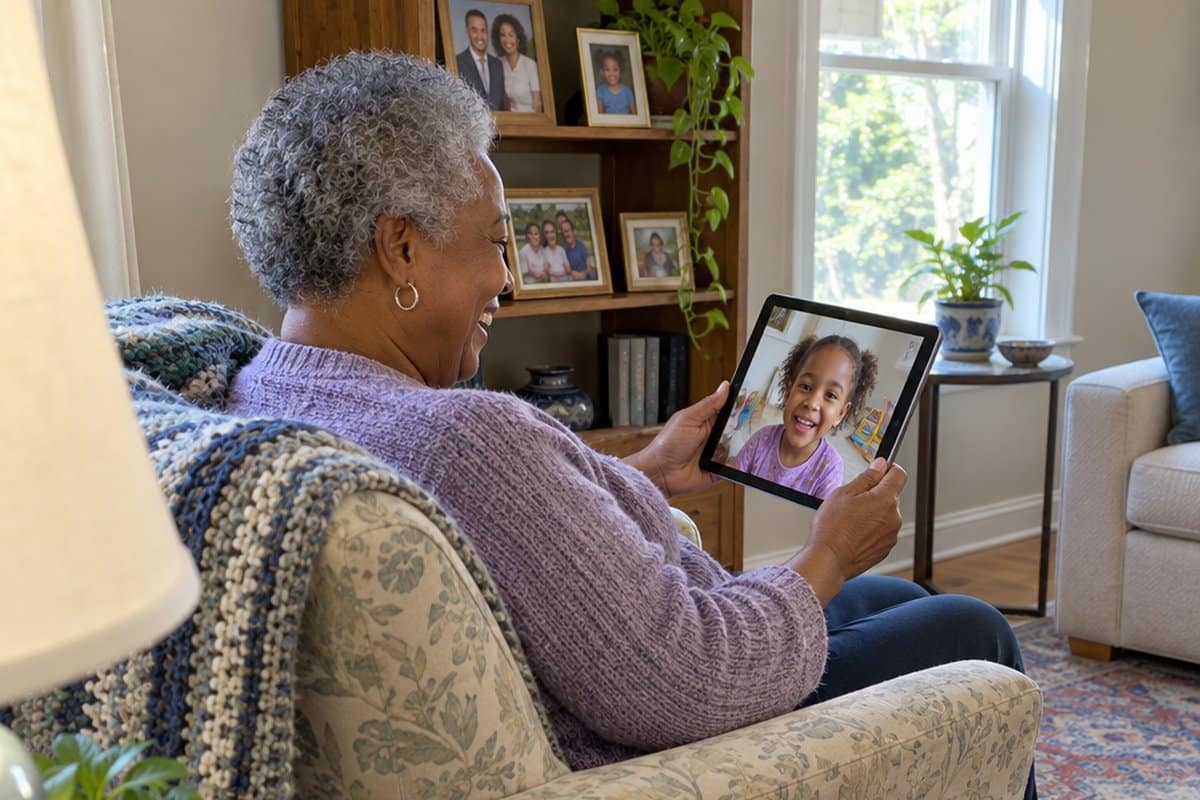
You sit down to help Mom or Dad pick a computer, and suddenly there are a hundred choices. Laptop or tablet: which is best for a senior’s computer needs?
It depends on the person, and I will walk you through it.
This article compares the two, covers the simplest laptop options (Chromebook picks), and gives tips for low vision and arthritis. It also covers tablet benefits, what to look for when buying, and which operating system is easiest to learn.


Are Seniors Really Scared of Technology?
New technology like smartphones, tablets, computers, and social media is only for the young, right? Seniors cannot learn new things like using a computer or a laptop, can they? These are common thoughts, and they are not fair. Plenty of people were never given a reason to try one, and that is a fair place to start.
However, in reality, this lack of understanding is not at all based on fear of technology. Many seniors do not know why they need to use it in the first place. The absence of any useful purpose for adopting new technology is an important reason why seniors choose not to add a laptop or tablet to their lives.
Once someone finds one thing they want to do, such as video calls with the grandkids, the rest tends to follow.

Laptops vs. Tablets: Which is Best?
Many people start with a desktop or laptop PC for getting online and using the Internet. These devices have been around for a while now. And most people are already aware of laptops, having seen family members use them or on TV. And, like most technology, some laptops are easier to use than others. Here are the good and bad points for laptops vs. tablets for seniors.
Laptops are Bigger and Heavier than Tablets
Laptops are portable. Close the screen, and it can be carried with you nearly anywhere. But, some laptops are quite large and nearly 18″ long. This may be difficult for some seniors to manage. Some are also heavy and require a good grip to hold onto safely.
Laptops Require More Steps to Operate than Tablets
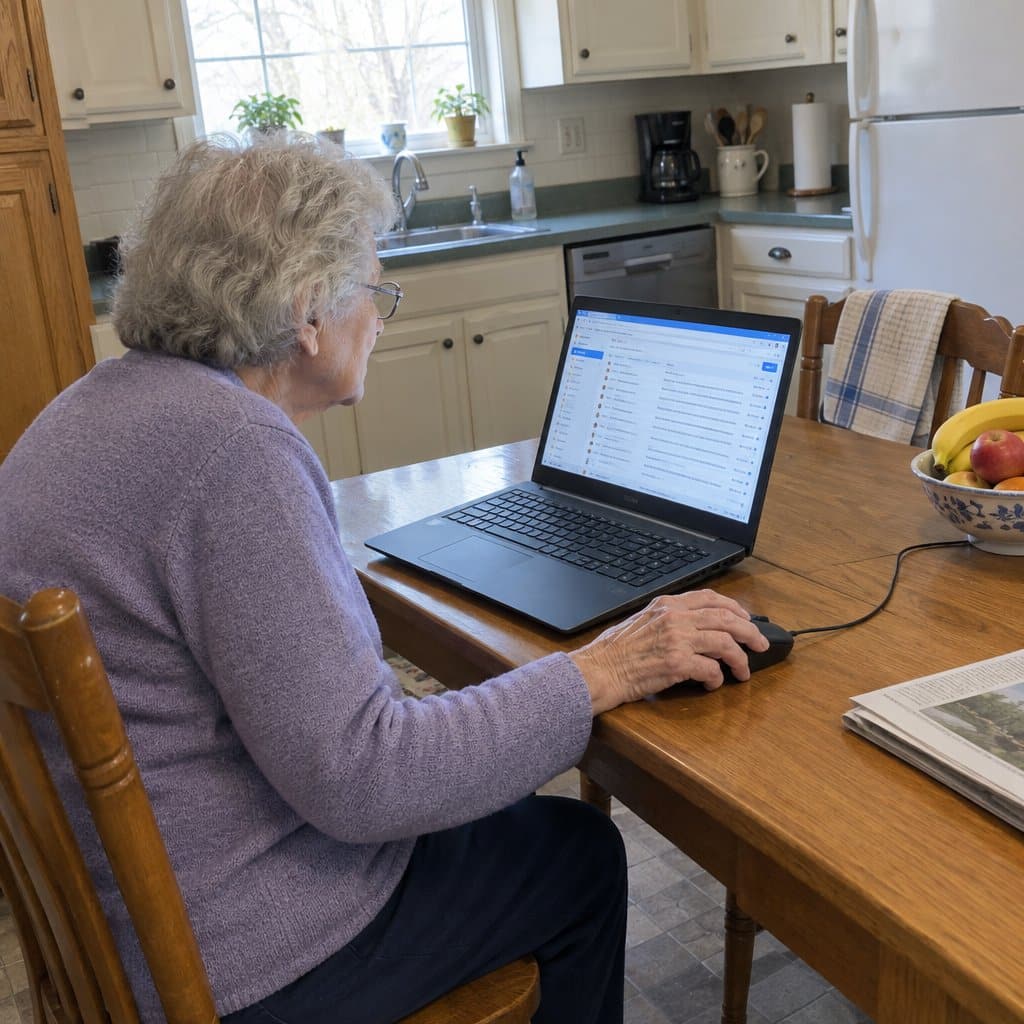
Another drawback with laptops is that many functions require multiple steps when compared to a tablet or mobile device. For example, to check emails on a laptop, the senior would have to open a web browser and type in “www.googlemail.com” in the address bar. Then, when the page comes up, they would enter their email address and password. Yes, this process has a few shortcuts, but it will still require multiple steps.
On the other hand, with a tablet, the user would have to touch the email icon with their finger. And, if their login info is saved, their email box opens right up.
Another problem with laptops is that hitting special key combos, such as “Ctrl,” “Alt,” & “Delete,” can be quite a task, especially for people who have arthritis.
Tablets are Usually Easier to Use than Laptops
Given these laptop problems, tablets are known as the easiest device for older adults. They are much simpler to learn and use. The simple and intuitive touchscreen interface is a big reason for that. Companies such as Birdsong Life (a sponsor of this site) have made tablets specially designed for senior users that are easy to use but still have all the major functions a tablet should have. They have made technology truly accessible to everybody, and useful to everyone.
No more typing on bulky keyboards and clicking the ‘mouse’ to give the computer any commands. Especially since some people with arthritis have difficulty operating a mouse. With the latest iPad or tablet, basic activities like browsing the Internet, reading the news, checking emails, listening to music, clicking photos, and sending messages and videos to others is now possible at the touch of a fingertip.
Laptop Tips for Low Vision and Arthritis
A few small choices can make a laptop much easier for someone with low vision or arthritis. Most of them have to do with the screen, the keys and the mouse.
Start with a backlit screen. A backlit screen is clearer, brighter and easier to see. Pair that with a larger size, since a 14″ screen is the least I would suggest for most people.
Next, look at the keyboard. Big buttons with big, bold letters are easy to read, and they help with both poor vision and sore joints. You can find a keyboard with large keys made for this. If the laptop’s own keys are too small to read, keyboard stickers that go right on the keys are made for people with low vision.
Then think about the pad below the keyboard that moves the cursor. It takes the fingertips to use, and many people with arthritis or weak hands will not like it. A separate mouse that plugs into the laptop is easier and less painful, and I have a guide to the best computer mouse for arthritic hands.
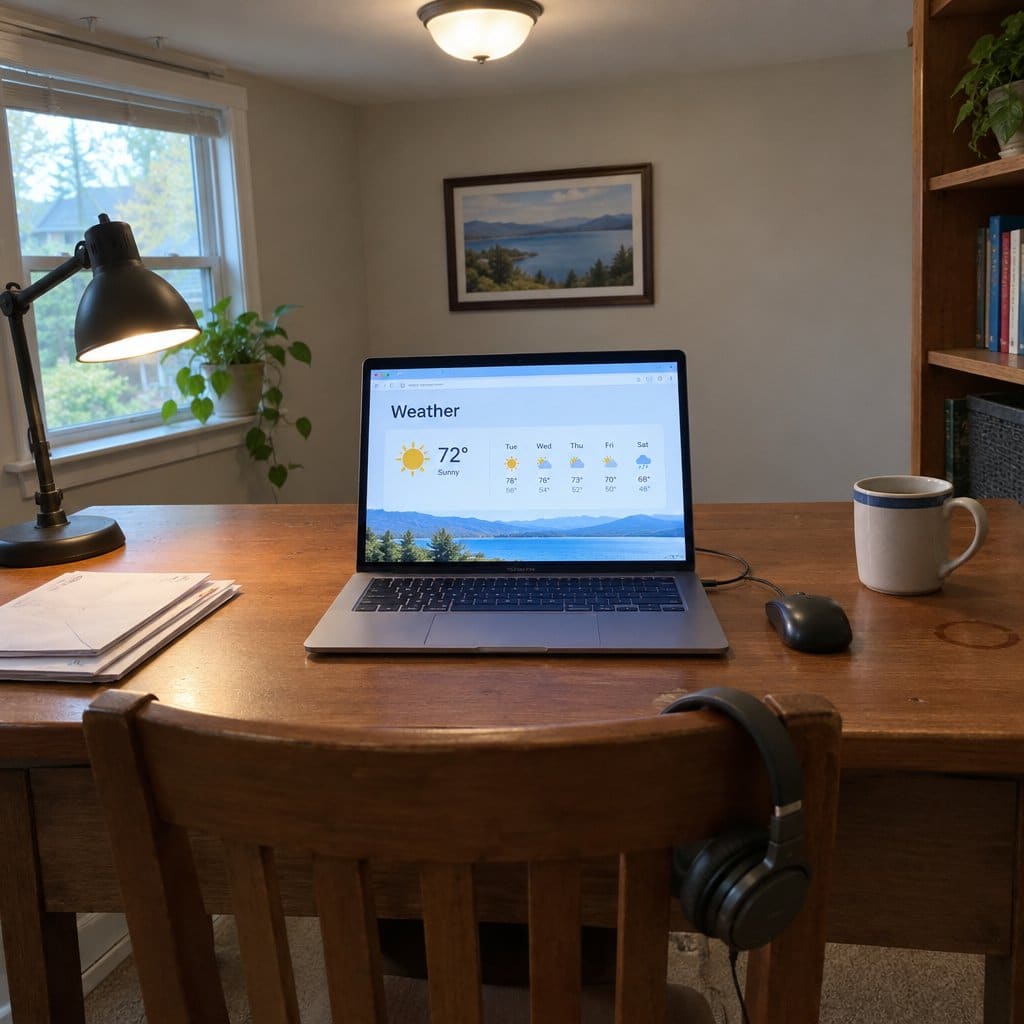
Sound is the last piece. Laptop speakers differ from one model to the next, so don’t worry about them too much. If the sound is hard to hear, add lightweight headphones or plug in external speakers. If your loved one also watches TV, my guide to TV headphones for seniors may help too.
The trade-off is that a larger screen makes for a heavier laptop, and a heavier laptop can be harder to carry for someone with weak hands.
The Simplest Laptop for Seniors: Chromebook Picks
If you decide a laptop suits your family member better than a tablet, look at a Chromebook. Chromebooks run Google’s Chrome OS, which has a very simple layout and is an easier system for seniors to learn than Windows.
The top pick is a 14″ Chromebook with a backlit, high-density screen. That works out to roughly 11-1/2″ wide by 8″ high. It has a webcam, two USB ports, 32 GB of storage and up to 12 hours of battery life. It weighs 3.42 pounds, so it is easy to carry around.
A simpler runner-up is a 14″ Chromebook with fewer features. It has half the storage, which only matters if you plan to save a lot of pictures. The battery lasts up to 8.25 hours, and it weighs 3.77 pounds. The screen is not backlit, and that could make a real difference for someone with vision problems.
For low vision, choose a Chromebook with a 15.6″ full HD screen that is also backlit. A bigger, clearer, brighter screen is the whole point of this one. It weighs 4.85 pounds, about a pound more than the others, and the extra weight comes from the larger size.
What to look for
- Chrome OS
- 4 GB of RAM and at least 16 GB of storage
- A backlit, high-density screen of at least 14″. Skip the 10″ and 11″ models, which are much too small.
- A total weight under 5 pounds, and 4 pounds or less if the person has weakness in the arms or hands
Large keys with bold letters help anyone with low vision or sore joints, and a keyboard with big buttons is worth a look. Keyboard stickers can also do the job. The pad below the keyboard is hard on people with arthritis or weak hands, so a separate plug-in mouse is easier and less painful to use.
Laptop speakers vary, but you can add headphones or external speakers.
A Chromebook covers email, bill paying, video calls with family, and searching for recipes, whether that is for cooking and experimenting in the kitchen or just a new dinner idea. Many favorite games also come in electronic versions that can be easier to see.
You will see bad reviews of Chromebooks, and most complain that they are too simple. That is the reason to buy one here. People run into trouble when they load them down with things they were never designed to do, and a bigger screen or longer battery also means more weight.
Acer Chromebook 14
The Acer Chromebook 14 is a laptop with a 14-inch Full HD screen, built on Google’s Chrome OS. It has an aluminum body and is rated for up to 12 hours on a battery charge.
Chrome OS keeps the day-to-day chores light. It updates itself (with an internet connection), has virus protection built in, and starts up in seconds. Google Docs, Sheets and Slides come with it, and they can open and edit Microsoft Office files, so a Word document from a friend or a church newsletter is not a problem.
You can also add apps, music, movies and books through the Google Play Store. It comes with 100GB of Google Drive space, so files are backed up automatically.
The trade-off is storage. It has 32GB built in, which fills up quickly if you keep lots of photos or videos on the machine itself. It also works best with an internet connection, so it is a better fit for a home with reliable Wi-Fi. And if your family member depends on specific Windows programs, a Chromebook will not run them.
HP Chromebook Laptop 14"
The HP 14″ Chromebook (model 14-ak040wm) is a plain, straightforward laptop that runs Chrome OS. The screen is 14 inches with an anti-glare finish, so it is easier to look at near a window or a lamp. It weighs 3.6 pounds.
It suits someone who mostly wants email, video calls, web browsing, photos and video. It has 4 GB of memory and Wi-Fi, plus a headphone jack and three USB ports, so you can plug in a mouse or a printer cable without hunting for an adapter. There is also an HDMI port for connecting to a TV.
The trade-off is storage. It has 16 GB of built-in space, which fills up fast if you save a lot of photos or videos on the laptop itself. A microSD card slot helps, and so does keeping things online. It also isn’t for anyone who needs Windows programs, since a Chromebook won’t run them.
Acer Chromebook 15.6" Touchscreen
The Acer Chromebook 15.6″ is a laptop that runs Chrome OS, the simple Google system mentioned above. It has a 15.6-inch Full HD touchscreen with an anti-glare finish, so you can tap the screen or use the keyboard, whichever feels natural.
It suits someone who mostly wants email, web browsing, video calls and streaming. It has a built-in webcam and WiFi 5, and it’s listed with 12+ hours of battery life, which means you can go most of a day without hunting for the charger.
The trade-off is storage. It has 64GB, which is fine for a Chromebook that keeps most things online, but not much room for a large collection of photos and videos. It also won’t run Windows programs, so if you rely on one, check that first.
Large Print Keyboard Stickers
If the keyboard itself is the hurdle, large print keyboard stickers may help. These have black letters on an off-white background, and they stick right onto the keys of a laptop or desktop keyboard you already own.
The stickers are made of Lexan polycarbonate with 3M adhesive, and the letters are printed beneath the surface. That means the print is protected and should not rub off as the keys get used. The product name also says they will not curl or slip.
The trade-off is that they only help with reading the keys. They do nothing for the screen, the menus, or how the computer works. They also go on a physical keyboard, so they are no use with a tablet’s on-screen keyboard.
Benefits of Using Tablets & iPads
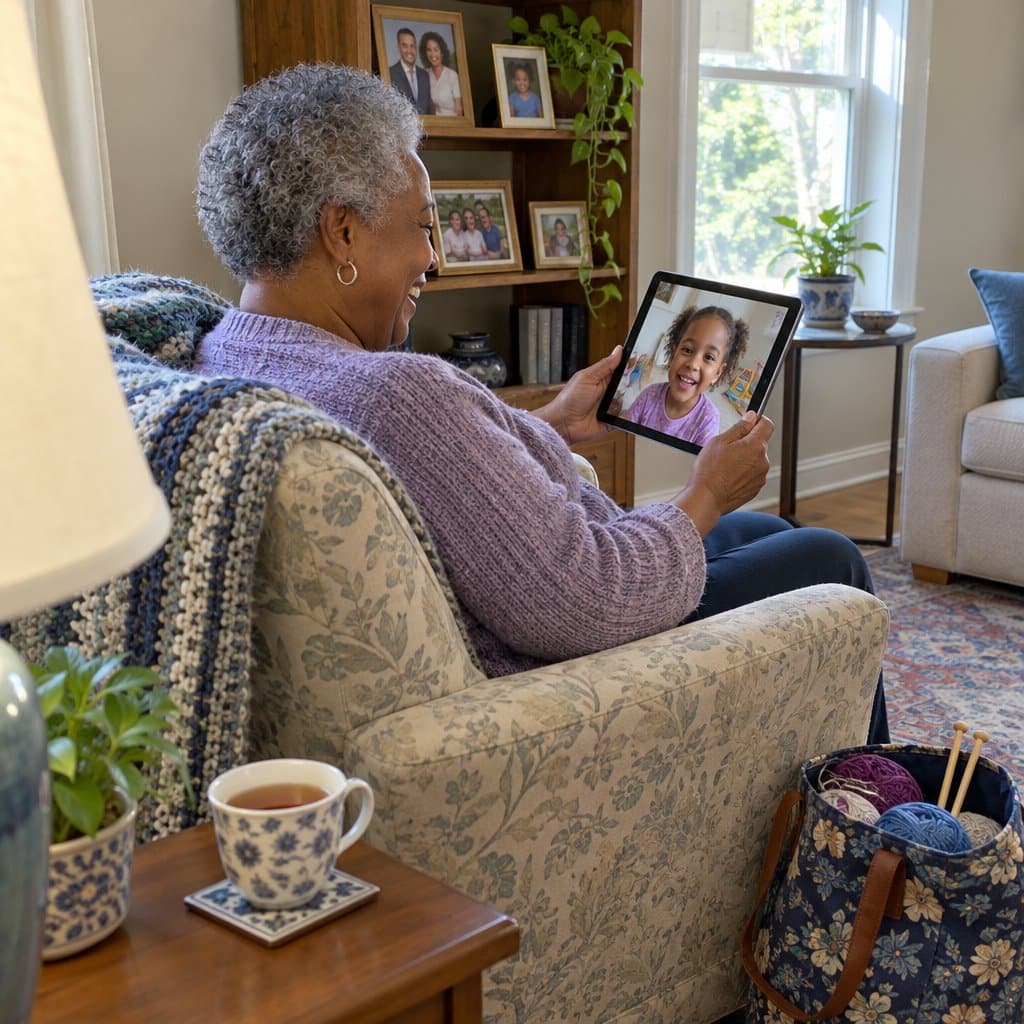
Using tablets and iPads instead of laptops seems more convenient and natural for many people. There are other benefits too. Tablets encourage you to try new things and pick up new skills while focusing on the task at hand.
If you are wondering what to do with a tablet once you have one, here are some tablet games for seniors that are fun and easy to start with.
Another important benefit: seniors are less likely to “mess something up” with a tablet. It is harder to delete programs and icons on a tablet accidentally. Other benefits of tablet devices include :
Builds Social Skills
One of the biggest advantages of using tablets is that it allows us to socialize with others. Easy to use apps for texting, voice calling, and video chatting let seniors connect with their loved ones instantly. And they do not even have to leave the comfort of their homes. In a way, tablets help connect people who live miles and miles away. This reduces loneliness and isolation with the press of an icon in just a few seconds.
Lifelong Learning
Tablets also help seniors learn and acquire new skills very easily. There are dozens of free and paid apps that cater to the interests of seniors. New skills are learned by watching videos about their hobbies or even downloading a new movie. These tasks, which seem so simple to us, give seniors a sense of pride that does wonders for their self-esteem. This new way of learning and improving themselves has made tablet computing very popular among seniors.
Convenience
Tablets help people do many basic activities of daily life easier and quicker. Some examples are shopping for groceries, banking, or ordering food from a restaurant. These can be done right from home, any time of day. No having to get dressed, drive to town, make the purchase, load up the car and drive back home. If those trips have become hard, it can be safer to use a tablet for them.
Safety
Simply by downloading the right apps on your tablet devices, people can monitor their loved ones in real-time. This includes aging parents and relatives. Seniors can also video chat with their doctors or emergency personnel in an emergency. And get immediate help as needed.
Things to Consider while Choosing a Tablet
With so many things going for tablet PCs, you are probably considering a tablet for you or your senior loved one. But, while shopping for a tablet or iPad for seniors, please keep these points in mind:
1. Choose a Tablet with a Large Screen
Screen size is one of the biggest differences between a smartphone and a tablet. Most smartphones try to crowd all information into a sub-5” screen. Many seniors have trouble seeing these small screens.
Not so with tablets, though! A bigger screen can mean the difference between seeing clearly and not seeing. This is key for anyone with low vision. Look for tablets with at least a 10″ screen for most seniors.
2. Compare the Overall Size and Weight
While it may seem like a small detail, look at it.
The overall sizes of tablets. The weight is an important consideration too. Also, remember that covers and add-ons, such as a senior-friendly computer keyboard, will add to the total weight.
3. Find a Tablet that is Simple to Use
Another very important thing to consider is how easy the User Interface (UI) is to use. Look for interfaces specially designed to make tablets easier for seniors to use, like the Birdsong tablets (a sponsor of this site).
The two leading operating systems available today are iOS (available on all mobile Apple products) and Android (available on most other tablet devices, including Samsung). Each system has its own pros and cons. It would be best to have the person try each system before picking one. The next section compares these operating systems to help you decide.

Questions to Ask Before You Buy a Laptop
Before you buy a laptop for a senior, it helps to ask a few questions. The answers will point you toward the right one.
First, how will they use it? Mostly the internet, or also things like word processing and spreadsheets? Will they play games or work with photos? Do they need USB ports to connect cell phones or MP3 players?
Second, how much computer experience do they have? A beginner has little or none. A novice can open a browser window and use Google. An intermediate user can install software and run programs. An advanced user can work with files, write code and build websites.
Third, what are their physical limits? Can they read small print, and can they see a dimly lit screen? Is there any hearing loss, and if so, how much? Do arthritis or weak hands make typing or using a mouse hard?
Fourth, what is the budget? Laptop prices vary a lot with the features included. Someone with more advanced computer skills may need 8 GB of RAM or more.
Have the answers in hand before you shop. The trade-off is that a laptop with more features usually costs you something in size, weight or money, so choose only what the person will really use.
iOS or Android or Windows: Which is the Right OS for Seniors?
One of the first things you will need to decide when selecting a tablet is the Operating System (OS). There are three main choices available. All three perform basic tasks quite well. But each one also has a few pros and cons.
Really though, there is no wrong choice. They are all much easier to use than past systems. A good idea might be to choose the one you are more familiar with so that you can help them out.
Here are the advantages and disadvantages of each OS:
Apple iOS
The iPad is probably the most popular tablet, and it has its own OS called, simply, iOS. It is used for all Apple mobile devices, including iPads, iPods, and iPhones. iOS has its own Apple Store, where you can download over a million paid or free apps (third-party software). iOS 10 is the current version at the time of this writing.
Pros and Cons of Apple iOS for Seniors and Elderly
Pros
- Powerful and very intuitive OS
- Extremely easy to learn and use. If you are already an iPhone user, the device connectivity is much easier
- Big icons which can be pressed lightly
- Over a million paid and free apps are available in the Apple App Store, including many made with special interests in mind
- Apple approves all apps. So there is almost no chance of downloading a virus or an app designed to steal or corrupt your data
- iOS is generally more secure and safer and protects your data more securely than other OS
Cons
- Customization options are limited to the background color and order of the apps that appear onscreen.
- iOS does not support Flash animation. Some websites may not load correctly on iPads
- No central file storage browser, unlike the Android OS. Different files get stored in the particular app it was created in
- iPads are the most expensive tablets. If you are only looking to use the Internet for casual browsing, you may find it too expensive
Android OS
Android Operating System is another popular OS for tablets. It is made by Google and is usually found on several brands, such as Samsung, Amazon, Asus, and Huawei. Like iOS, the Android OS was made first for smartphones and then used for tablets. The latest version of the Android OS is called Nougat. Interesting fact: All Android OS versions usually have a dessert-related name!
Pros and Cons of Android OS for Older Adults
Pros
- A highly customizable system that lets you design the look of the tablet to suit your personal preference.
- Android tablets are available in all price brackets, ranging from fancy expensive ones to dirt cheap
- Google Now, the built-in personal Assistant in Android systems, is very responsive to verbal search requests and voice commands
- Android allows users to have two app windows open at the same time. As a result, users can do multiple things. Such as watching a video and typing a text message at the same time
- With other Android users, file sharing, such as photos or music, is much easier on Android than on iOS, thanks to different easy-to-use file-sharing apps.
Cons
- Not as intuitive or as simple to use as iOS. It may take some time to get used to the Android system
- Different tablet manufacturers can tweak the OS. So, not all apps are available on all tablets using an Android system. You may not find the same app on different Android tablets
- Unlike an iOS device, which generally looks and works the same way on almost all devices, Android looks different on different tablets. That can be confusing if you prefer consistency
- Since apps can be downloaded from multiple sources, there can always be a small possibility of downloading a virus or software designed to corrupt or steal your data. While anti-virus software is available for the Android system, if they are not updated regularly, the system may still be at risk.
- Most Android tablets have a soft button to “go back,” unlike the iPads, which have a single Home Button to go back. The Android soft button can sometimes get lost in apps when they are in full-screen mode, making them unable to return to the previous screen.
Windows OS
The Windows 10 OS is the latest operating system for Windows tablets. Many companies, besides Microsoft, also offer tablets using the Windows 10 OS. However, the Windows OS is a late entrant into the tablet market and is trying to catch up by offering a host of new features in its new OS. But, despite its efforts, it seems that Windows tablets are the ideal choice for people who want to do some really heavy-duty computing on their tablets. It is designed to do much more than browse the internet, play games, etc.
Pros and Cons of Windows OS for Older Adults
Pros
- Many people who are used to Windows operating systems on their PCs will find the OS very familiar and easy to use
- Simple setup and minimal efforts for Windows 7 and Windows 8 users
- Allows high levels of customization of the Home Screen, unlike the iOS
- Supports Flash and Flash-enabled websites and content without any issues
Cons
- Highly susceptible to viruses and malware
- As the Windows OS is highly robust, making it one of the most expensive software available
- Windows was not specifically designed for tablets or smartphones, so the interactions sometimes seem a little awkward
- In many cases, a stylus or a mouse becomes a necessity, which may cause pain for people with arthritis
- Given the fact that it is not a very “lean” software, unlike iOS and Android, the Windows OS may require as much service and maintenance as a laptop or a PC
Verdict: The Easiest Operating System for Older Adults
So, now you know what to expect from each of the three main types of tablet operating systems. Almost all three systems allow you to do similar activities. The difference lies in how easy it is to do these various tasks.
iOS is probably the most obvious choice for most people, given its ease of use and simplicity. Although iPads cost more than inexpensive Android tablets, you get easy navigation with strong built-in security. iOS also offers a huge number of user-friendly apps.
Android comes in second place. Windows 10 is good, but it is better suited to business use than to casual browsing and light reading.

BONUS: Quick List of Activities You Can Do Using a Tablet
With the right apps downloaded, a tablet makes all of the following easy:
- Stay connected with friends and family
- Keep up with news and current events
- Keep your mind busy with puzzles and games
- Set reminders for medical appointments and for taking pills
- Listen to your favorite music online and watch videos and movies
- Catch up on your reading
- Look up recipes online and save your own recipes
- Create a video blog about yourself and your surroundings
- Look up medical information
- Pay bills and do your banking
Summary and Final Recommendations
So, laptops or tablets? Because they are lighter and easier to carry, tablets are a better choice for many people than laptops. Most work by touching a finger to the screen to open the app you want. They are also small and light enough to carry through the house or out and about.
There are three basic operating systems, each with plusses and minuses. Overall, iPads with Apple iOS are the easiest to use. Yes, these tablets lack some customization and cost a little more. But they offer a complete package.
Tell me about your experiences using a tablet or iPad with a parent or grandparent. Do you use one yourself? Let me know what your recommendations are in the comments below!










Very good article. It lays out the senior situation with computers very well. I do have a few things I would like to add. Now most of the Android devices are, by default, set to only download from Google Play. This reduces the chances of getting viruses. Yes, fully agree different vendors tweak the Android system. I teach classes on the use of Android smartphones and see this all the time. However, different versions of iOS have similar but less obvious differences. I.E. on iPhone X you swipe down from the upper right to get the control center whereas previous version you swipe up from the bottom.
One problem with the tablet only approach is that many sites like Facebook limit what you can do on the mobile app. Some settings are only available by going to the browser on a computer.
Windows 10 can be customized to operate like a tablet, but requires the initial set-up which can be troubling. Using the 2 in 1 laptops allows the total experience of both.
Hi Larry- thanks for the comment. Nice to have input on laptops and tablets from an expert. Appreciate your contribution! –Scott
I have been asked to help choose a surprise 70th birthday present for a neighbour who is completely non technical. I think they were thinking about an ipad but I was wondering about a chrome book for ease of typing things when required. Am I over thinking it? they are not too concerned about cost so maybe I should be looking at an IPad.
I’d appreciate any thoughts
Hi Richard – I think I would go with the iPad because it can be simpler to operate. The senior can access the functions, apps, and, games by touching the icons which will be simpler than trying to find them in a menu or click with a mouse. I recommend putting the icons they will use on the home screen just to keep everything easy to find. Any other opinions out there?