
If you want the short list, these are my top photo printer picks for seniors, and you’ll find the details on each one further down.

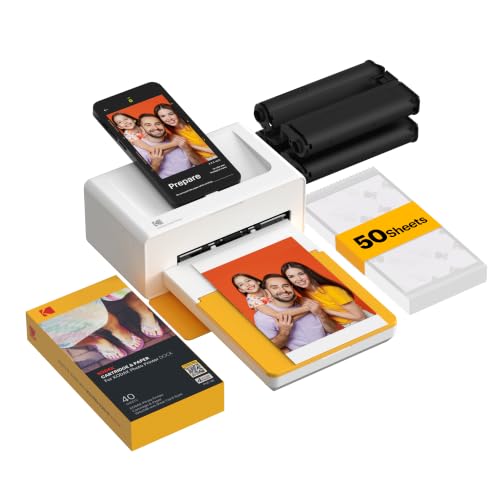


You have a phone full of family pictures, and you would love to hold a few in your hand or put one on the refrigerator. This guide to a senior-friendly photo printer is meant to make that simple.
We cover easy-to-use photo printers that skip the cables and confusing settings, what to look for when you buy, and how to turn your printer into a fun photo booth with family and friends. We also name the downsides of each one, so you do not waste your money.
Best Easy-to-Use Photo Printers for Seniors
Here is my list of user-friendly photo printers, with a review of each one.
KODAK Mini 2 Retro Photo Printer
The KODAK Mini 2 Retro prints photos from your smartphone over Bluetooth. It works with both iPhone and Android. You turn it on, connect, and pick the picture you want to print.
Each print is made in three color layers and finished with a clear protective coating. The coating is meant to resist fingerprints, water, and fading, so the photo you hand to a grandchild should hold up in a wallet or on the refrigerator.
Because it connects wirelessly, there are no cables or adapters to fuss with. That is a real help if small plugs are hard for your hands to manage.
Now the downsides. A print takes about 55 seconds, so this is not the printer for a big stack of photos in one sitting. The prints are 2×3 inches, which is wallet size, so they won’t replace a framed 4×6.
You will also need a smartphone to run it. If you want to print straight from a memory card with no phone involved, look elsewhere. But if you have pictures on your phone and want a few small, sturdy prints without a lot of setup, this one fits the job.
Liene 4×6 Photo Printer
Pros:
- Built-in Wi-Fi for no-cable printing
- Vibrant prints to preserve memories
- Large icons on display for easy navigation
Cons:
- Slow print speeds require patience
- Only compatible with 4×6” paper size
- Large base takes up substantial counter space
The Liene 4×6 Photo Printer turns smartphone photos into 4×6 prints. Based on the maker’s specs and reviews, it looks like a good option if you want color prints without cables.
It looks simple to connect and print from your phone.
It has a built-in Wi-Fi hotspot that links your phone or tablet without cords and adapters. Cables are a hassle, and this one skips them by using its own Wi-Fi connection to your phone.
The Liene uses thermal dye sublimation (a heat process that transfers dye onto the paper) for saturated 4×6 prints. The Liene app also lets you add filters and effects to prints.
One downside is that the Liene 4×6 model is slower than some printers, taking over a minute for each photo. And it takes up a good amount of counter space. But if you want simple photo printing from your phone, it is a good choice.

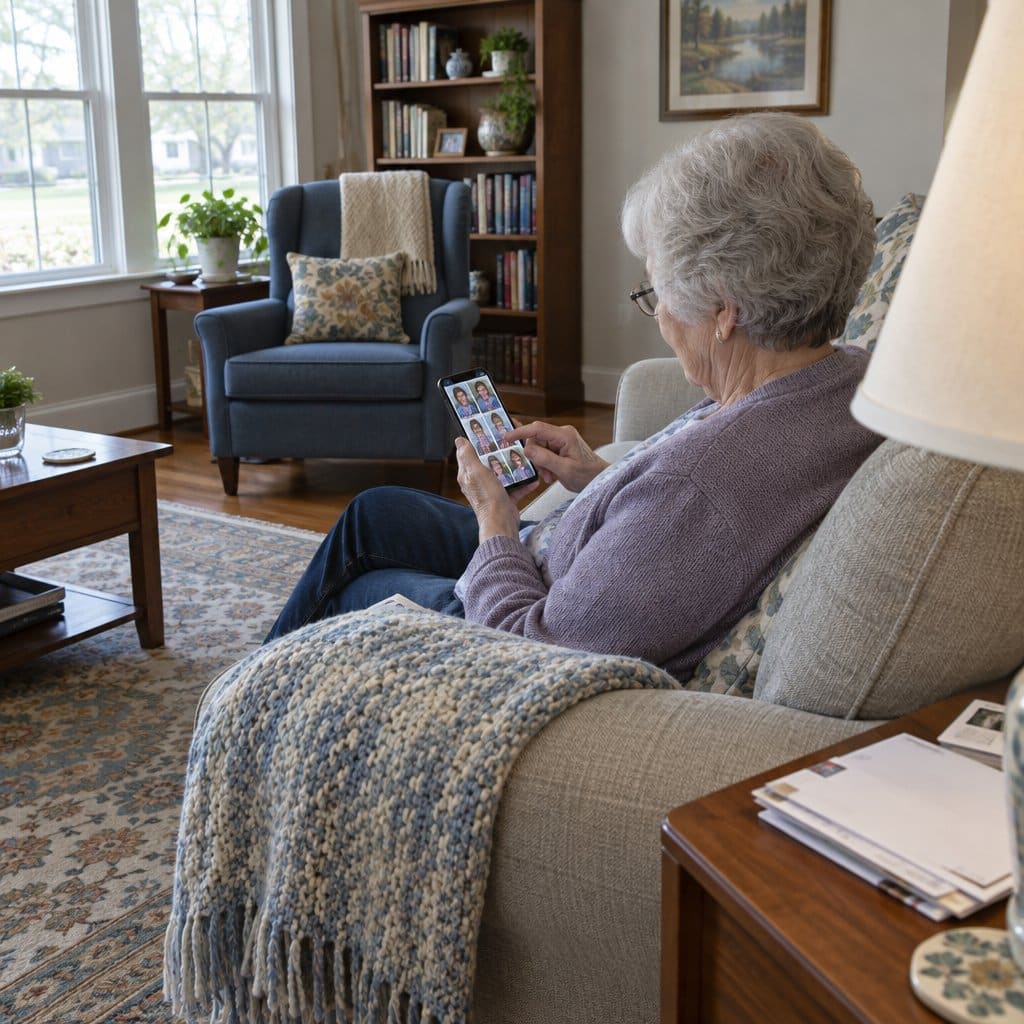
KODAK Dock Plus Photo Printer
Pros:
- One touch printing is easy if you have arthritis
- Simultaneous phone charging for those with limited mobility
- Scratch/water-resistant prints to preserve memories
Cons:
- Very slow print speed may be frustrating
- App setup requires assistance for less tech-savvy
- Only compatible with 4×6” paper size
The KODAK Dock Plus 4PASS prints with one touch over Bluetooth. If you have sore hands or fingers, you can print 4×6” photos from your Apple or Android smartphone by simply placing it on the dock.
It also charges your phone while printing, so there is no separate charger and cord to deal with.
The 4PASS laminating coating is meant to protect prints if they get wet or scratched.
Some downsides are the slow 1 ppm (page per minute) print speed, which takes patience. The app also needs some setup, so you may want a family member or friend to help the first time.
But with one touch printing and a protective coating, the Dock Plus 4PASS makes it simple to print from your smartphone.
Canon PIXMA TR4520 All-In-One Printer
Pros:
- Large buttons make printer easy to operate
- Scans and copies documents without a computer
- Compact to fit on shelves with limited space
Cons:
- Changing ink cartridges can be difficult with dexterity issues
- Wi-Fi setup hard for those less tech-savvy
- Small paper capacity requires frequent refilling
With its large, clearly labeled buttons, the Canon PIXMA TR4520 is easy to operate, including if you have arthritis or hand pain.
The automatic document feeder lets you scan or copy important paperwork without a computer. The feeder holds the pages for you, so there is no lining them up on the glass.
This all-in-one printer also has a small 16 x 13 x 5.5 inch footprint that fits on compact shelves. A good fit if shelf space is tight.
Potential downsides are the difficult ink replacement, the complex Wi-Fi setup, and frequent paper refills. But if you want an easy-to-use printer that also scans and copies, the PIXMA TR4520 is a solid option.
Kodak Dock Wi-Fi Instant Photo Printer
Pros:
- Wi-Fi avoids difficult cable connections for arthritis hands
- Charges phone simultaneously for those with limited mobility
- Extremely lightweight and small to easily carry and transport
Cons:
- App and firmware setup tricky if unfamiliar with technology
- No SD card reader makes printing camera photos difficult
- Small 4×6” size may be hard to see for those with vision issues
The Wi-Fi connection of the Kodak Dock printer lets you print directly from your iPhone without small cables and plugs, which helps if you have arthritis or hand pain.
The built-in charger powers your phone while printing, so there is less to juggle.
Weighing only 1.1 pounds and measuring 6.5 x 3.4 x 1.5 inches, it is light and takes up very little space.
Challenges are that you may need help setting up the app and firmware, there is no SD card slot for printing camera photos, and the small 4×6” prints may be hard to see if you have low vision.
But if you want a portable printer without cable struggles, the Kodak Dock & Wi-Fi Portable is a good wireless option.
Canon Ivy 2 Mini Photo Printer

Pros:
- Bluetooth allows cable-free printing from smartphones
- Extremely lightweight at just 6.4 oz for easy portability
- Sticky-backed photos are easy to handle for those with dexterity issues
Cons:
- Small 2”x3” prints may be difficult to see clearly
- Battery life impacts print quality over time
- Most suitable for portrait photos rather than landscapes
The Bluetooth connection of the Canon IVY mini photo printer lets you print directly from your phone without small cables and adapters. That is a real help if you have arthritis or limited dexterity.
Weighing only 6.4 oz, this compact printer is easy to carry to gatherings or visits with family. The light build is easy to hold.
The Canon IVY uses sticky-backed paper, so the small 2”x3” prints are easy to peel off and handle. There is no paper tray to line up.
Potential challenges are that the small size may be hard to see, battery life may affect quality over time, and it works best for portrait prints rather than landscapes. A good choice if you want simple printing from your phone.

Buying Guide: Choosing the Best Photo Printer for Seniors
This buying guide explains which features make printing and maintaining photos easy.
Table 1: Important Photo Printer Features for Older Adults
| Feature | Benefit for Seniors | Printer Examples |
|---|---|---|
| Ease of Use | Simplified controls and large buttons accommodate dexterity and vision issues. | Canon Selphy CP1300, Kodak Dock Plus |
| Wireless Connectivity | Cable-free WiFi/Bluetooth printing ideal for arthritis hands. | Canon Selphy CP1300, Kodak Dock Plus |
| Display Screen | Large font and icons help seniors with visual impairments. | Liene 4×6 Photo Printer |
| Voice Assistant Compatibility | Allows voice control for those with limited mobility. | Canon PIXMA TR4520 |
| Print Quality | Fading-resistant technologies preserve photos as memories. | Kodak Dock Plus 4PASS |
| Print Speed | Faster speeds better accommodate senior events. | Canon Selphy CP1300 |
| Technical Support | Aid for seniors less comfortable with technology. | Canon printers |
| Compact Size | Small footprint perfect for limited counter space. | Canon Selphy CP1300 |
Ease of Use
Look for simple menus, large well-spaced buttons, and clear controls. That helps if you have dexterity issues or trouble seeing small icons and text. The Canon Selphy CP1300 has large, clearly labeled buttons that are easy to press if you have arthritis.
Large Display Screen
Choose a printer with a large display that is easy to read. Large menus and icons help anyone with low vision. The Liene 4×6 model has big, high contrast menus.
Accessible Maintenance
It helps to have a photo printer that is easy to maintain. Look for models that make it simple to change ink cartridges, clean printheads, or replace other consumables. That way you can keep using the printer without any trouble.
Voice Assistant Compatibility
If you want to control the printer by voice, pick a model that works with Amazon Alexa or Google Home. This lets you print hands-free, which helps if reaching or using buttons is difficult. The Canon PIXMA TR4520 works with Alexa.
Print Quality
Look for fade-resistant prints, such as Kodak’s 4PASS laminate coating, so your photos last. Lower-cost models may fade over time.
Look for printers with high resolution (measured in DPI) and a wide color range to ensure your photos appear sharp and vibrant.
Printing Speed
Faster print speeds let you print several photos quickly during family gatherings. The Canon Selphy CP1300 is one of the faster compact printers, at about 37 seconds per photo.
Wireless Printing Technologies Explained
This guide explains key features of common wireless printing technologies to consider when choosing a photo printer.
| Printing Option | Pros | Cons | Best For | Printers |
|---|---|---|---|---|
| Wi-Fi | No cables to connect, can print from anywhere in Wi-Fi range, fast speeds | Requires wireless network connection, can be challenging to set up | Seniors with Wi-Fi at home who want to print anywhere | Liene 4×6, Canon PIXMA TR4520, Canon Selphy CP1300, Kodak Dock & Wi-Fi |
| Bluetooth | Direct connection between devices, no cables, simple to set up | Slower speeds, must be within 30 feet of printer | Tech-averse seniors who just want basic wireless connection | KODAK Dock Plus 4PASS, Canon IVY |
| AirPrint | Seamless printing from iOS devices, no app or setup needed | Only works with Apple devices like iPhones & iPads | Seniors with iPhones or iPads | Canon PIXMA TR4520 |
| NFC | Tap smartphone to printer to connect, extremely easy | Only works at very close contact, not all phones have NFC | Less tech-savvy seniors once printer is setup | Canon Selphy CP1300 |
Recommendations
- Wi-Fi offers the fastest speeds but may take some setup on your home network.
- Bluetooth is simplest for basic wireless printing within limited range.
- AirPrint seamlessly integrates with Apple devices.
- NFC provides effortless tap-to-print convenience if smartphone is compatible.
Think about your devices and how comfortable you are with setup when choosing a wireless printing type.
Infographic: Photo Printer Features

Share on Your Site With This Code:
<a href="https://grayingwithgrace.com/photo-printers-for-seniors/"><img style="width:100%;" src="https://grayingwithgrace.com/wp-content/uploads/2023/04/photo-printer-features.png"></a><br>Design by: <a href="https://grayingwithgrace.com">Graying With Grace</a>
Keep these features in mind while choosing a photo printer, and you should find a model that suits you and makes printing your favorite memories easy.