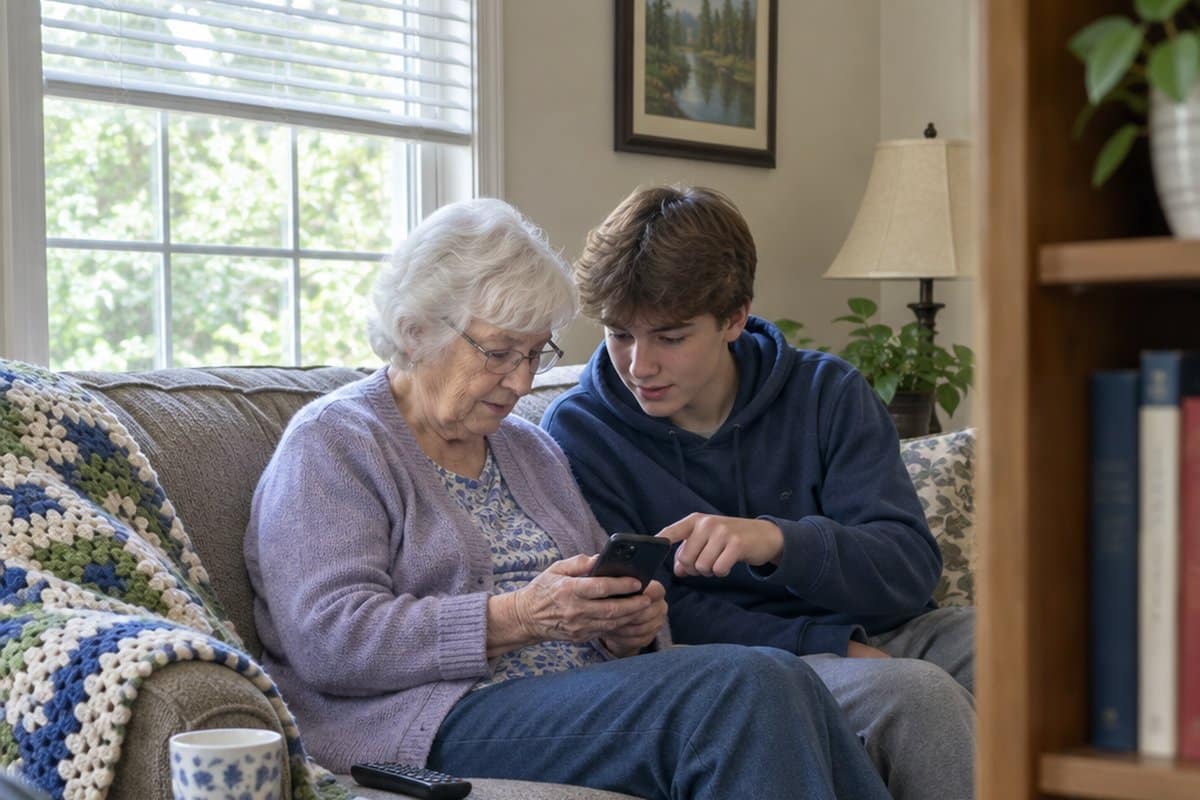
Handing a grandparent a new phone and watching them stare at the screen is a moment many of us know. This guide gives 12 tips for teaching your grandparents how to use a smartphone, one plain step at a time. Along the way we cover video calls with clear sound and steady screens, finding and saving family photos, texting and WhatsApp, voice commands for calls and timers, the magnifier and bigger text, and Facebook shortcuts for keeping up with family.
How to Teach Seniors and the Elderly How to Use a Smartphone: General Advice
Anyone learning something new does better with a calm pace. Here is what tends to help:
- Be patient with them as they learn how to use the phone.
- Consistently demonstrate the task, don’t just tell them how to do it.
- Have them repeat the task until they feel comfortable doing it.
- Break up the tasks into smaller steps.
- Finally, don’t try to teach them everything in one day. They will retain more with multiple sessions.
Now that you know a bit more about teaching them, let’s look at what you should teach them.
Accessibility Settings: Magnifier and Bigger Text
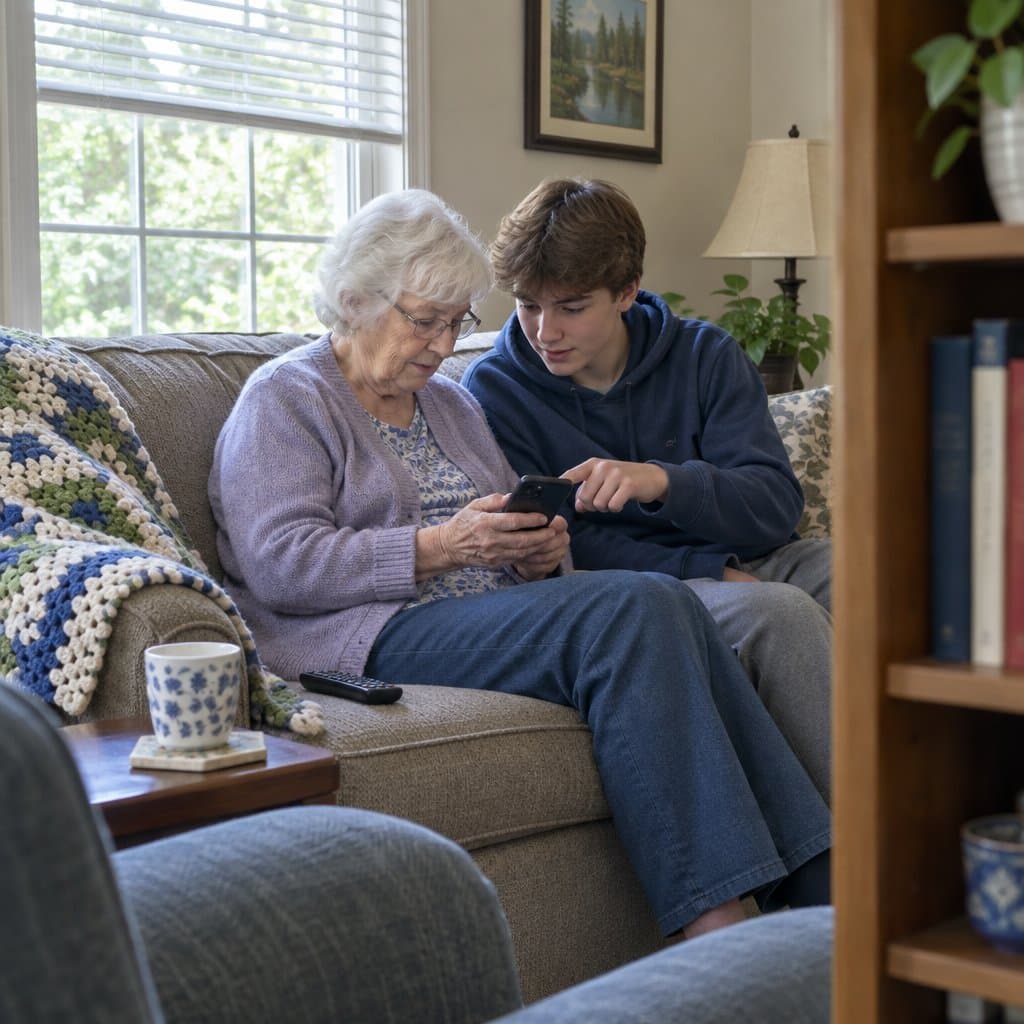
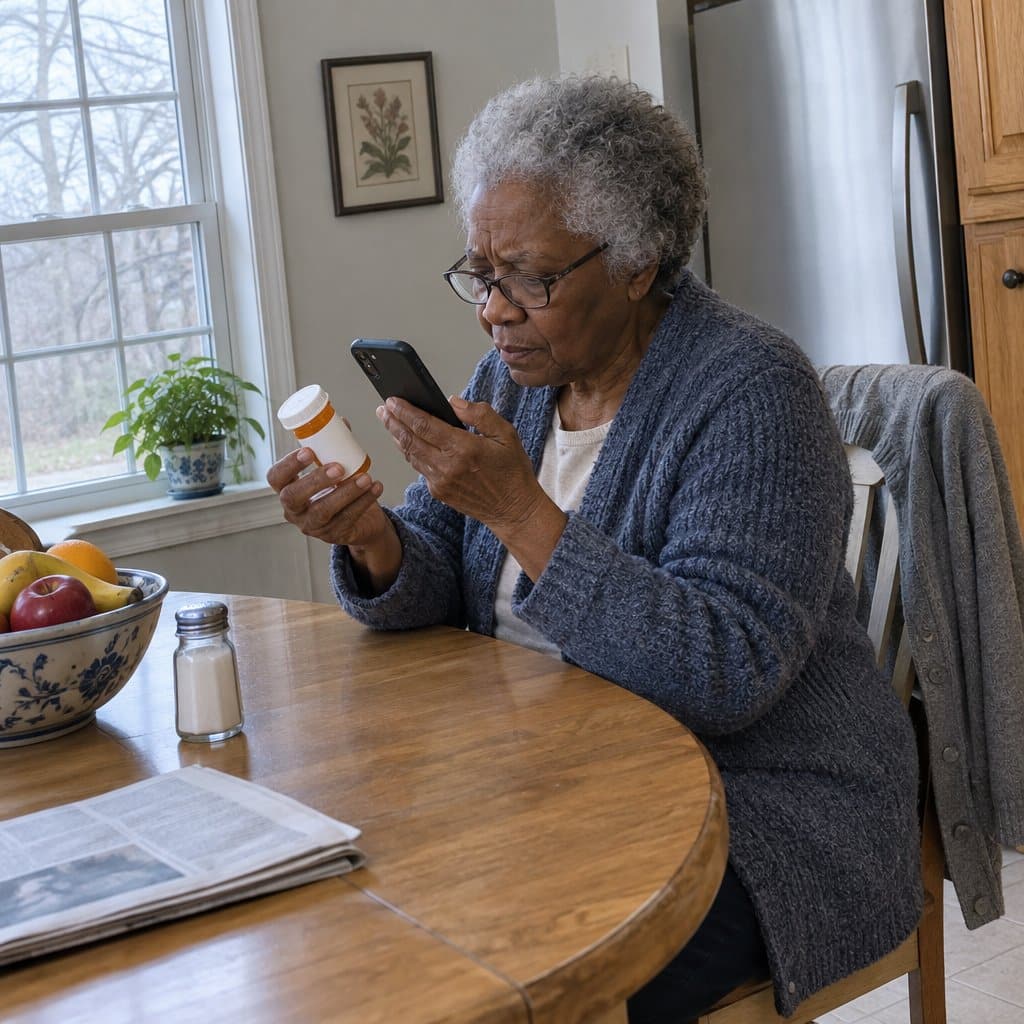
Say your grandmother squints at a menu or a medicine label. Her phone has a built-in magnifier that works like a magnifying glass, and most people never get shown it. Phone makers tuck these features deep in the settings, so it is not her fault she has not found them.
On an iPhone, go to Settings, then Accessibility, then Magnifier, and turn it on. After that, she can triple-click the side button to start it anytime.
On an Android, open the Camera app and go to More, then Magnifier. Some phones also let you add it to the quick settings panel.
Next, larger text. On an iPhone, go to Settings, then Display & Brightness, then Text Size. On an Android, go to Settings, then Accessibility, then Font Size. Everything on the screen becomes easier to read.
A few more built-in features are worth showing her, and some phones are set up better for this than others, as my guide to the easiest smartphones for the elderly explains:
- Screen magnification: double-tap with three fingers on an iPhone, or use the accessibility shortcut on an Android, to enlarge any screen for a moment.
- Custom vibrations: give each family member their own vibration pattern, so she knows who is calling without looking at the phone.
- Medical ID: store medical information that emergency responders can reach even when the phone is locked.
- Voice-to-text: tap the microphone on the keyboard and speak the message instead of typing it.
If you want to start somewhere, try the magnifier or the text size first. Those two tend to make the biggest difference right away. For more along these lines, see my no-cost safety hacks and my guide to reading aids.
Menu names differ between phone brands and software versions, so sit with her and look for each setting on her own phone.
12 Important Functions to Teach Seniors About Smartphones
You and your friends probably take many of these phone functions for granted. But they may be completely new ideas to someone who has never used a smartphone, and learning them can make daily life easier.
Here are some of the most essential tasks that seniors and the elderly should learn how to do on their new smartphones.
1. How to Set Up the Phone and Change Settings: The Basics
First and foremost, you must make sure that they understand the basics of using a phone. For instance, make sure they know how to turn the smartphone on and off and adjust the volume. Be sure that they know how to answer a call and end it once they are finished.
Other vital basics to teach your older loved one include charging their phone, how often to charge it, choosing a ringer they can hear well (and that they like), and navigating the phone’s menus. Explain what the icons on the screen mean and what each of them does.
2. How to Add and Manage Contacts
Next, you will want to help your loved one add contacts. This can be more difficult for them as they may not be as comfortable using computers or smartphones.
But, you can show them how to use the phone’s search function to find their friends and acquaintances and then add them by entering their contact information. Explain how this will make it easier to call their friends and loved ones or send messages.
Once they have added their contacts, it is crucial that you help them manage the information by setting up default phone numbers and email addresses for them, forwarding important messages to these addresses, and deleting unwanted messages.
Also, set up emergency phone numbers and show them how to access them quickly in an emergency.
3. How to Set Up and Check Their Voicemail
One of the most critical functions of a smartphone is the voicemail function. You will want to help your loved one learn how to access their voicemail and answer any messages that may be waiting for them.
Make sure they know how to tell when they have new messages. Explain to them how to listen to their messages and then delete anything they do not want or need to hear again.
4. How to Use the Internet
They need access to the internet to stay connected with family and friends.
There are a few simple steps that you can take to help your grandparents learn how to use the internet. First, show them how to open their browser and type in the website’s address that they want to visit.
Second, teach them how to use search engines like Google to find the information they are looking for. Now might be a good time to warn them that not every website on the internet is where they want to go.
Finally, teach them how to navigate websites using tabs or windows. Show them what links and buttons are and how to use them to move around the web.
By taking these simple steps, your grandparents will be able to use the internet like a pro!
5. How to Send Emails and Text Messages
Next, show them how to use email and text messaging. This is probably one of the first things that your grandparents will want to figure out how to do!
First, don’t assume they understand the difference between text messages and emails. Explain and show them the differences.
The easiest way to set them up on email is just to have them sign up for an account with either Gmail or Facebook. Once they have an account, you can send them a link to set up their phone so that they can start using it.
For texting, show them how to use the texting app and how to know when they have a new text message. Show them how to read and reply to the message. Also, explain how to send a message to a new person from their contacts. They may not know how to start a new thread.
Finally, it is essential to keep a close eye on your grandparents’ email and text messages. If they ever get a message that they don’t recognize, be sure to help them figure out if they can trust the message or not.
6. How to Use Google Maps and GPS Navigation
Google Maps is a very useful app, so your loved one must be able to use it. Have them show you how to enter an address or directions and how to find restaurants, businesses, parks, and other destinations in their vicinity by using Google Maps.
Additionally, be sure they know how to turn on GPS navigation and use it to get around.
7. How to Use the App Store
One of the best ways to teach your grandparents how to use a smartphone is to get them started with the App Store. This is where they can find all of the different apps they need to use their phone effectively. Plus, it’s an excellent way to learn more about new technology.
Show them that reviews help, but they are not proof an app is safe. Have them check with you before installing anything new.
Discuss in-app purchases for premium apps and understand the implications of making these purchases. Explain that many apps are initially free but may charge them for additional features once they start using the app.
For most apps, advise them to only download apps from their phone’s dedicated app store for safety. They can check with you first about any apps outside their app store.
8. How to Play Games
Help your parents or grandparents find a game in the app store that they will enjoy playing. Some great games for seniors include hidden object games, matching games, and puzzle games.
Make sure to give them helpful instructions on how to play it. This includes telling them where to look for the objects or clues in the game and telling them when they should make choices to progress the story or solve puzzles.
Be sure to keep a close eye on your grandparents’ progress in the game. If they are having difficulty, offer to help them out and give them some tips on overcoming the obstacles.
9. How to Use Camera Functions
One of the best things that you can do for your grandparents is to teach them how to use the camera functions on their phones. This can allow them to easily take and share photos and videos with friends and family members.
Plus, they will be able to capture memories that they will never forget and look at any time they like.
Show them how to take a photo and how to adjust the settings on the camera. Explain where images are stored on the smartphone and how they can access them.
Demonstrate how to switch between photos and videos. Don’t forget to tell them that videos will take up much of their phone’s memory, so don’t go crazy with them!
As a fun exercise, help them to find the first photo or video they took on their phone and have them share it with a friend or family member.
10. How to Set Up Social Media Apps
One of the best things you can do for your grandparents is to teach them how to use social media apps on their phone. This will allow them to stay connected with friends and family members, share photos and videos, and learn about new products and services.
Tell your grandparents how to sign in to their social media accounts and how to post updates and photos. Show them how to use the app’s different features, such as commenting on posts, liking posts, or sharing articles or videos.
Explain how to find their friends and loved ones on the services. Facebook is usually an excellent place to start.
Make sure they know that using social media can be addictive, so be sure to set boundaries for them! Also, make sure they understand that anything they post online is visible to others!
Finally, be prepared for some minor embarrassment. They will make comments on your pictures that you may not appreciate!
11. How to Keep Their Personal Information Safe
One of the best ways that you can help your grandparents learn how to use a smartphone is by assisting them in staying organized and keeping their phones safe.
This means teaching them how to use folders, password protection, and other security features on their device. This will help them keep their information safe from thieves and other unwanted individuals.
Other tips to protect their identity and personal information:
- Use the phone’s built-in password manager (iCloud Keychain or Google Password Manager) and set a passcode, rather than a separate app such as FaceLock.
- Avoid revealing too much information when filling out online forms or registering for services. For example, don’t list your full name, address, birthdate, etc.
- Do not provide personal information (like your Social Security number) in any unsolicited communication. Do not reply. Look up the company’s number yourself from a card or statement, and call that.
- Always use a strong password and keep it updated. Don’t share your password with anyone, and don’t use easily guessed words like “password” or “123456”.
- Don’t forget to sign out of all your accounts when you’re finished using them. This will help protect your privacy and security settings.
12. How to Keep Themselves and Their Phone Safe
There are many ways to keep yourself safe when using a smartphone. Here are eight tips worth knowing:
- Use a protective case or screen protector.
- Keep your phone away from water and other liquids.
- Don’t leave your phone unattended in a public place.
- Don’t text and drive!
- Use the phone responsibly, especially when making decisions about spending money or downloading apps.
- Be aware of your surroundings and avoid walking into busy intersections or crowds without first looking up from your phone.
- Lockdown your device with a passcode, facial recognition, or pattern lock if you’re not using it and you don’t want others to access your data.
- If they experience any problems with their smartphone, tell them to reach out to you for help.

Facebook Shortcuts for Keeping Up With Family
Say your grandmother opens Facebook to see the grandkids’ news and gets buried in an endless feed. A few settings can cut through the noise, and they help her keep in touch with the people who matter most.
Start with “See First.” It makes a family member’s posts show up at the top of her feed, so she never misses an update from her children or grandchildren.
Here is how to set it up:
- Go to the family member’s profile.
- Click the “Following” button.
- Select “See First.”
Next, bookmarks. Show her how to save the pages and groups she visits often, so she can find them again right away.
Then, notifications. She can choose which alerts she receives, which cuts down on constant interruptions.
Two more settings are worth a look. Reader Mode strips away ads and sidebars when she reads an article. A privacy checkup lets her control exactly who sees her posts and personal information. Those same settings are useful when she shares photos of the family.
Menus can look different from one phone or app version to the next, so sit with her and find each setting together. The “See First” step has to be repeated for each family member, so pick her favorites first.
Voice Commands for Calls, Timers and Reminders
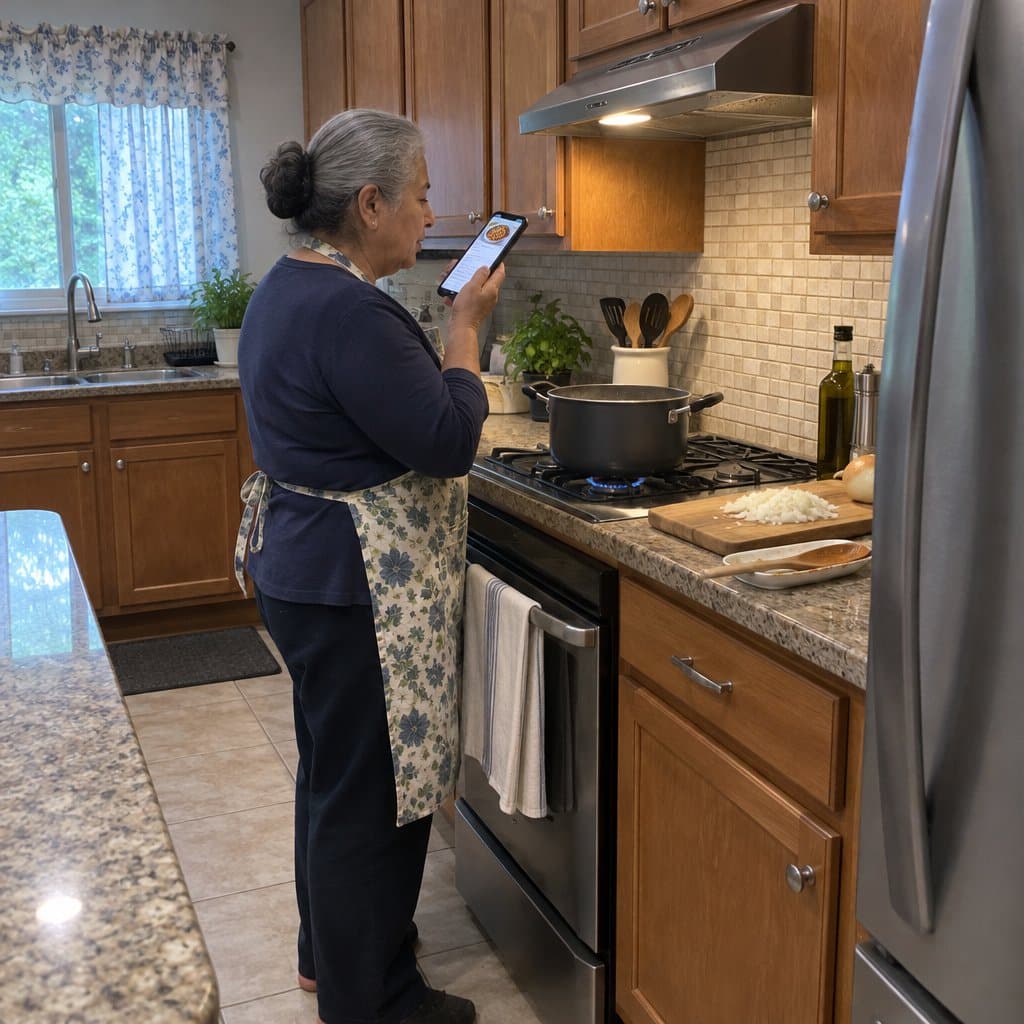
Remember when turning on the music meant walking over to the stereo? Hunting through apps and menus can feel like that walk. Voice commands skip it, because your grandparents just say what they want.
Siri on an iPhone, Google Assistant on an Android, and Alexa all work this way. There is no tiny text to read, no complicated menus, and no need to remember where anything is located.
Have them try a few simple phrases:
- “Call” followed by a contact’s name
- “Set a timer for 20 minutes”
- “What’s the weather today?”
- “Remind me to take my medication at 9am”
The reminder is a good one to practice, since it is something they may use every day. Sit with them and say each phrase out loud together.
The most common mistake is waiting for a beep before speaking. Instead, they say “Hey Siri” or “OK Google” and keep talking in the same breath.
Phones and speakers will not always understand every request on the first try. If one does not, have them say it again slowly, and keep the practice short.
Texting Tips and WhatsApp for Family Connection
Say your grandfather sends a text and the grandkids seem puzzled by it. Often the words are fine. It is how they look on the screen.
Start with capital letters. A message in ALL CAPS feels like shouting to younger family members. If caps lock is on, one tap on that key turns it off.
Next, punctuation. To younger people, a period at the end of a text can seem cold or even angry. “Looking forward to seeing you” with no period reads as warmer.
Then, voice-to-text. If typing is frustrating, show him the microphone button on the keyboard. He speaks naturally and the phone types the words, which is usually much faster than hunting for each letter.
Voice commands are worth a try too. Siri on an iPhone, Google Assistant on an Android, or Alexa can call someone, set a timer, give the weather, or set a reminder, with no tiny text or menus. The common mistake is waiting for a beep. Have him say “Hey Siri” or “OK Google” and keep talking in the same breath.
Then there is WhatsApp, a free messaging app that grandkids often wish their grandparents would use. It works the same on an iPhone or an Android and sends photos at full quality. It also makes family groups easy and starts a video call with one tap. For other choices, my guide to messaging apps for seniors compares several.
Setting it up takes about two minutes:
- Search for WhatsApp in the phone’s app store.
- Download and open it.
- Verify the phone number when prompted.
- Tap the plus icon to find contacts who already use it.
One more thing to know: WhatsApp lets family see when a message has been read. Grandkids like that, because it tells them everything is fine when a call goes unanswered. Some people may not want others to see that, so mention it before they start.
Finding, Saving and Organizing Family Photos
Say your grandmother took a lovely photo of the grandchildren and then spent ten minutes scrolling to find it. A few photo habits can fix that, and they help keep your precious memories easy to reach.
Start with search. The phone can find photos by what is in them, so she can type “beach,” “dog,” “birthday,” or even a person’s name.
On an iPhone, open Photos and type in the search bar at the top. On an Android, open Google Photos and use its search bar.
Next, albums. Show her how to sort photos by event, person, or year, so a trip or a holiday has its own spot.
Then, backup. Turn on automatic cloud backup, and the photos are saved even if the phone is lost or broken.
Two smaller tricks are worth a minute. The camera can open straight from the lock screen: swipe right on an iPhone, or double-press the power button on many Android phones. And the phone can crop a photo, adjust brightness, or remove red-eye without any extra app.
Menus differ from phone to phone, so do these steps together on her own phone. If small text gets in the way, the magnifier and larger text size are built in, and my guide to reading aids covers more options.
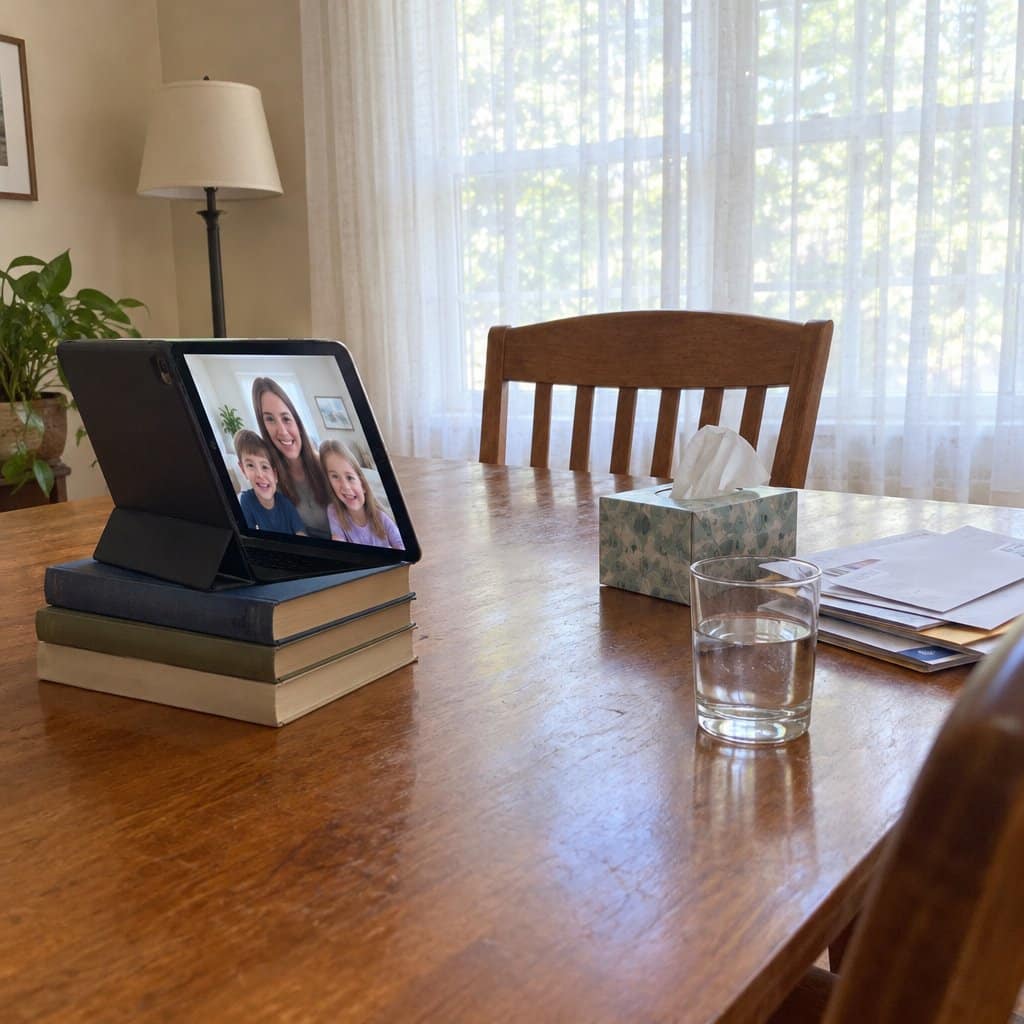
Video Calls That Work: Sound, Lighting and Steady Screens
Video calls are one of the best ways for your grandparents to connect with younger family members. Most problems come down to three small adjustments.
First, the microphone. On most devices, a small microphone button shows on screen during a call. If it has a line through it, they are muted, and one tap fixes it.
Second, the lighting. The usual reason family can’t see them clearly is a window or bright light behind them. Have them face a window, or put a lamp in front of them instead of behind.
Third, a steady device. A shaky camera is hard to watch. A phone or tablet stand works well, or they can prop the device against a stack of books so their hands are free to gesture.
Once they are comfortable, show them how to share their screen on a video call to show photos or documents. On most platforms, look for a button labeled “Share” or “Share Screen” during the call.
Button names and locations can differ from one app to the next, so sit with them during a practice call and find each one together.
Conclusion
A smartphone can help your grandparents stay in touch with family and friends. An easy to use smartphone can be an excellent tool. With a little patient teaching, they can get to the information, communication, and entertainment they want.
Keep a few safety habits in mind, and review the safety advice in this article. Let them know you are available for help whenever they need it.